
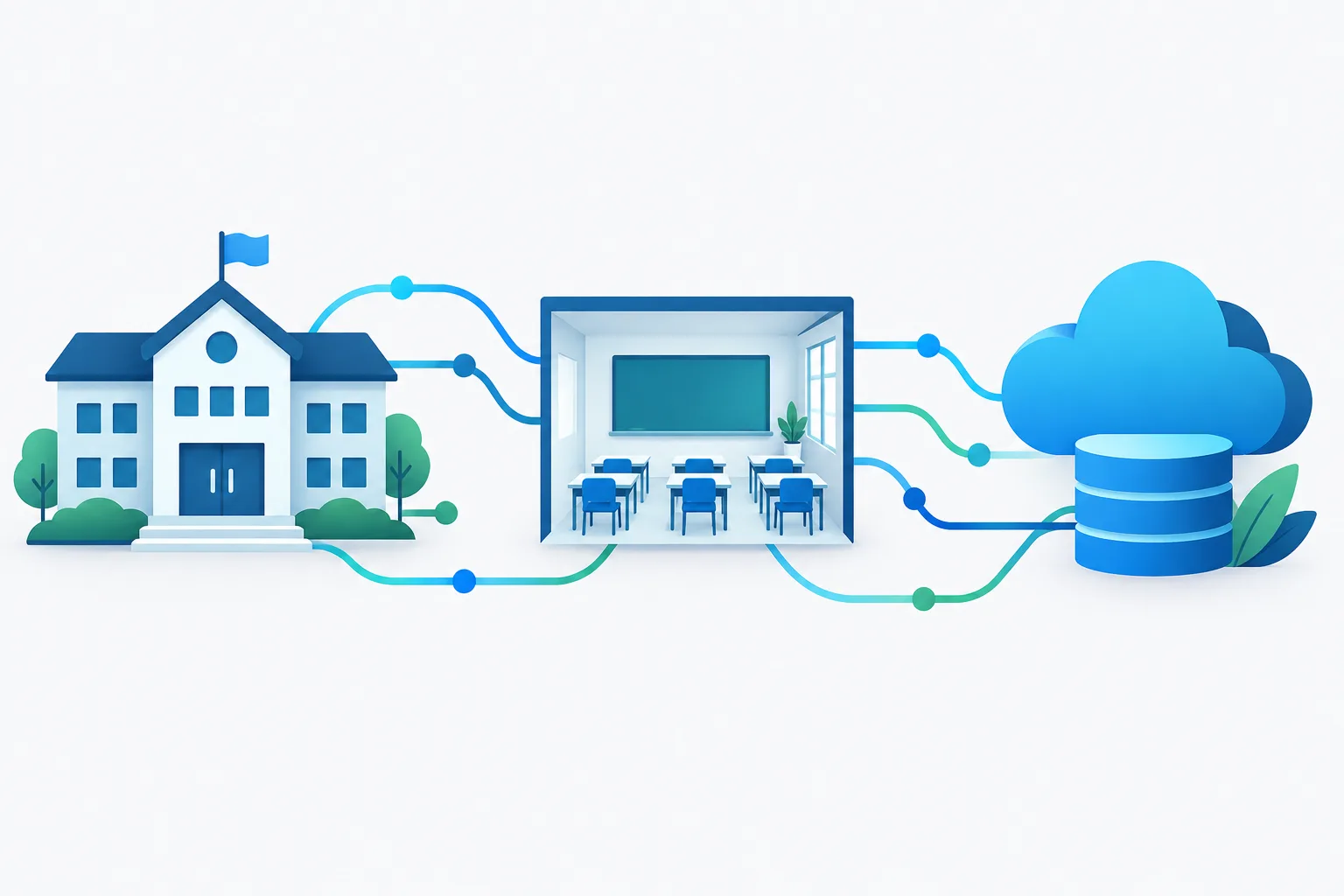
When a student roster is not syncing, it is tempting to start by changing settings in the learning app. But roster data passes through several steps: it is entered in the student information system (SIS), exported or shared through an integration, matched to accounts, and then processed by the destination app. A problem at any step can leave a student, class, or enrollment missing or out of date.
This SIS roster sync troubleshooting guide follows that path. Check each stage in order, keep a record of what you find, and avoid making broad changes until you know where the issue begins. For a broader look at planning school app connections, see these school technology integration strategies.
Start with the sync status and error details
First, identify the most recent sync attempt and whether it completed, failed, or is still processing. If your integration provides a status dashboard, review the run history and any error or warning details. A completed run does not necessarily mean every record was accepted. Some systems may process the overall job while rejecting or skipping specific records.
Check the timestamp against when the roster was last updated in the SIS. Confirm that the expected sync schedule has passed and that you are looking at the correct school, term, data source, or integration. School Data Sync describes health monitoring and reviewing sync results in its sync health and monitoring guidance.
Write down the affected class or account, the last known good sync, the error text, and any relevant record identifiers. Do not include student details in a ticket or message unless the recipient and channel are approved for that information.
Check the SIS record first
Before troubleshooting the connection, verify that the information exists and is current in the SIS. Look for the student, class, teacher, and enrollment in the correct school and term. Confirm that the student is actually enrolled in the class, not just present in the student directory, and check whether the enrollment is active according to your school’s data practices.
Compare the affected record with a similar record that appears correctly in the app. Look for differences in required fields, course or section assignment, status, school association, or student identifier. An incorrect or missing identifier can prevent systems from matching a record to the intended account. A class can also be present while its membership is missing or incomplete.
Check whether the change was saved in the SIS and whether it is included in the data set the integration sends. If the source record is wrong or absent, correct it through your school’s normal SIS process before testing the sync again.
Identify the connection type before changing settings
The next checks depend on how the SIS shares data with the learning app. The integration may use an API connection, a file exchange such as CSV, or a platform that sits between the two systems. Confirm the configured method and which system is responsible for starting or receiving updates. The steps for connecting data can vary by source and setup, as described in School Data Sync’s connection guidance.
For an API or OneRoster connection
- Review connection status. Check for authentication failures, endpoint errors, timeouts, or permission-related messages in the integration logs.
- Verify credentials and access. Confirm that the configured credentials are current, have the permissions required for the integration, and belong to the intended environment. If credentials were recently changed, check that the updated values were saved in the correct configuration.
- Confirm the endpoint and configuration. Make sure the connection points to the intended SIS or app environment and that the selected data scopes or resources include the records you expect.
- Protect secrets. Do not paste passwords, tokens, or other credentials into general email, chat, or support notes. Use the approved secure process for credential changes.
If your setup uses OneRoster, compare its configuration and error details with the relevant implementation guidance from 1EdTech’s OneRoster implementation FAQ. Do not assume that every API connection follows the same settings; confirm requirements with the systems involved.
For a CSV or other file-based sync
- Confirm the file is current. Check when it was created, when it was uploaded, and whether the integration picked up that specific file.
- Check the complete file set. Some integrations expect related files together. Confirm that all expected files arrived and that they belong to the same export or update.
- Review headers and required fields. Look for renamed or missing column headers, empty required values, unexpected formatting, and changes to the export template.
- Check identifiers and relationships. Confirm that student, class, and enrollment records refer to each other consistently, using the identifiers expected by the integration.
- Check processing results. Look for rejected rows, skipped records, or a report that identifies fields the destination could not use.
A file being present does not confirm that it was processed successfully. If the integration reports row-level problems, use a secure process to review only the information needed to diagnose the issue.
Check account matching and destination access
Sometimes the roster data reaches the learning app but does not attach to the account a student or teacher actually uses. Compare the identifier sent from the SIS with the matching field configured in the app. Check for duplicate accounts, changed usernames, differences in email or ID values, and accounts created outside the usual provisioning process.
Then check the destination app itself. Search for the student, class, and enrollment there, and confirm that the user has the expected access. A record may be present but associated with the wrong class, inactive, hidden by a filter, or not yet available to the user. If only one teacher or class is affected, compare its settings and membership with a working example.
For more on the school systems surrounding classroom apps, see this guide to learning management system IT support. If the issue also involves how student information is handled, the school’s student data protection practices are relevant to the troubleshooting process.
Test a small sample end to end
Once you have identified a likely cause, test with a small, appropriate sample rather than changing the full integration at once. Choose a record that the school is authorized to use for testing, then compare its source information, exported or transmitted values, integration result, and destination account.
Check the class membership as well as the student record. Confirm that the expected information appears in the app and that the account has the intended access. If the sample works, verify the broader update using the integration’s run results and the school’s normal validation process. If it fails, note the exact stage where the information stops matching.
When to contact a vendor
Contact the SIS vendor when the source record is missing, incorrect, or not included in the export or API response. Contact the learning-app vendor when the data appears to arrive but the app rejects it, maps it incorrectly, or does not associate it with the intended user or class. If a separate integration platform is involved, its support team may need to review the handoff between systems.
Share the sync time, error message, affected record type, connection method, and steps already checked. Follow your school’s privacy and support procedures when providing examples. Avoid sending unnecessary student data or credentials.
Frequently asked questions
Why are student rosters not syncing from the SIS to an app?
Common causes include a missing or incorrect SIS record, an enrollment that is not included in the export, connection or permission errors, field-mapping issues, or a mismatch between the SIS identifier and the destination account.
How can I tell whether a roster sync ran successfully?
Review the latest run status, timestamp, warnings, and record-level results. Then confirm that the expected student, class, and enrollment appear correctly in the destination app. A completed run alone may not mean every record was accepted.
Why does a student removed from the SIS still appear in a learning app?
Check whether the removal was saved, whether a later sync ran, and whether the integration sends changes of that type. Also review how the destination app handles inactive enrollments or accounts. The behavior can differ by configuration, so confirm it with the relevant vendor.
When should we contact the SIS vendor versus the learning-app vendor?
Start with the SIS vendor if the record is wrong or absent from the source data or export. Contact the app vendor if the data arrives but is not accepted, matched, or displayed as expected. Include the integration provider when the issue appears to occur between the systems.
Conclusion
Trace roster changes from the SIS through the connection and account match to the destination app. Checking the run details, source enrollment, integration method, and destination access can help isolate the cause without making unnecessary changes. For help with school technology operations, Zevonix provides managed IT services for schools, including 24/7 monitoring. You can contact the team at (904) 658-0777 to discuss your school’s needs.